Settings reference
Use Settings at /app/settings to inspect the selected organization’s configuration and manage the settings your role permits.
Last verified on October 30, 2026.
Navigation and access
Section titled “Navigation and access”Settings is a scrolling page. Select a navigation item to jump to its section. The header shows the organization name, plan, and people allowance; a missing name shows Organization unavailable.
| Navigation label | Direct URL | Contents |
|---|---|---|
| Workspace | /app/settings?tab=workspace |
Organization identity and application setup. |
| Integrations | /app/settings?tab=integrations |
GitHub App connection and repository access. |
| API & MCP access | /app/settings?tab=machine |
Personal accesses and organization machine controls. |
| AI | /app/settings?tab=ai |
Optional explanations and personal credentials. |
| Policies | /app/settings?tab=policies |
Shared scan policies and YAML import/export. |
| Notifications | /app/settings?tab=notifications |
Personal email preferences, shared schedules, and delivery destinations. |
| Team | /app/settings?tab=members |
Members, roles, and invitations. Hidden on Starter with one or fewer members; its direct URL opens Billing instead. |
| Billing | /app/settings?tab=billing |
Plan cards and available subscription actions. |
An unrecognized tab opens Workspace. Settings has no separate Security section.
| Capability | Viewer | Member | Administrator |
|---|---|---|---|
| Read organization settings and member list | Yes | Yes | Yes |
| Save personal email preferences | Yes | Yes | Yes |
| Manage own API tokens and MCP connection limits | Yes, subject to machine controls and eligible plan | Yes, subject to machine controls and eligible plan | Yes, subject to machine controls and eligible plan |
| Save personal explanation settings and key | No | Pro or Team | Pro or Team |
| Import connected GitHub repositories | No | Yes | Yes |
| Start or disconnect the shared GitHub connection | No | No | Yes |
| Change shared policies, export/import policy YAML, enable explanations, or change schedules | No | No | Yes; paid features also require Pro or Team |
| Manage invitations, roles, delivery destinations, billing, and organization machine controls | No | No | Yes |
Some policy and AI controls remain visible to non-administrators. Their visibility does not grant permission: the server rejects unauthorized saves. Role errors can read Role “viewer” cannot perform this action (needs admin+), with the actual role and required level substituted. Missing membership produces Not a member of this organization.

Workspace
Section titled “Workspace”Name and Slug are displayed as text, without editing fields. Name identifies the organization in the top bar and Overview. Slug is labeled as the organization’s URL identifier.
Under Getting started, Show getting started opens the application creation flow and reports Application setup opened. Opening it does not create an application. See Manage applications.
Integrations
Section titled “Integrations”This section covers the GitHub App only. Forgejo / Gitea, GitLab, and Bitbucket connections are added from Add repository in Repositories, or while choosing sources when creating an application, not from Settings.
This section displays GitHub App health. Possible headings include Connect the Perpensa GitHub App, GitHub App not installed, GitHub App deleted, GitHub App suspended, GitHub connection needs attention, and GitHub App installed. Unshared tracked repositories produce a counted message such as 1 tracked repository isn’t shared with the GitHub App yet. Shared repositories can continue scanning while others need authorization.
Repair GitHub access opens GitHub in another tab. For a partially shared, working installation, the action is Add repositories on GitHub. Reconnect GitHub or Install Perpensa on GitHub opens Connect GitHub. Health refreshes while the page is visible, including after returning from repair; merely opening a repair link does not verify restoration.
Connect GitHub dialog
Section titled “Connect GitHub dialog”The dialog shows the organization, plan, repository count, and, when connected, Connected · followed by the account and installation reference.
| Control or field | Behavior |
|---|---|
| Authorize this repository in GitHub | Starts authorization or opens the applicable installation’s repository-access page. While starting, the button can read Redirecting to GitHub…. |
| Reconnect GitHub / Install Perpensa on another account | Starts the connection flow for repair or another account. Starting this flow requires an administrator. |
| Installation rows | Show account names, suspension, and repository-list availability, with repair or install actions when applicable. |
| I’ve added the repository | Reloads the GitHub catalog after you change access. |
| Select repositories | Lists full names, private or public, language or —, and linked for existing connections. App not installed marks repositories without installation coverage. Existing connections and uncovered repositories cannot be selected. |
| Import selected (N) | Imports selected, covered repositories; disabled while busy or with no covered selection. A request accepts at most 20 repositories. Import requests are limited to 10 per minute per organization. |
| Disconnect | Administrator-only server action that marks active GitHub connections revoked in Perpensa. Success reports GitHub disconnected. |
| Close, the backdrop, or Escape | Dismisses the dialog. |
Loading catalog… appears while an empty available catalog loads. The catalog has no text-search control. A catalog error can show GitHub access needs attention. Reconnect or check the installation’s repository access.
Importing makes repositories available for application source selection. Choose an exact branch or tag in an application to start analysis. See Your first scan and Repositories reference.
Per-repository failures remain beside their rows. Repository not authorized for the GitHub App offers Authorize repository; missing installation messages offer Install GitHub App; GitHub App installation suspended offers Repair GitHub access; GitHub App installation removed offers Reinstall GitHub App. GitHub rate limit reached and GitHub did not respond offer Retry. Repository not found calls for refreshing access; other failures show Repository could not be imported and the reported reason.
Connection failures report GitHub installation failed with the returned reason or Unknown error. A blocked popup reports Allow popups to connect GitHub while preserving this application. Loading and disconnect failures show the returned error, falling back to Failed to load GitHub state or Disconnect failed. Import requires a selection; otherwise it reports Select at least one repository.
API & MCP access
Section titled “API & MCP access”API tokens shows authorized organization slots used and the allowance. Tokens count from authorization, before first use; OAuth MCP connections share the same allowance. Starter has 0 slots, Pro 5, and Team 25. Existing organization authorizations are suspended on Starter.
The displayed MCP endpoint is the address to add to your client. Sign in and approve consent there. Renew an OAuth connection or widen its permissions by reconnecting the client and selecting the existing connection. On paid plans, Copy agent setup provides client-specific connection commands or starter prompts with Copy controls.
See API and CI gate and MCP for client use.
Create or edit your access
Section titled “Create or edit your access”| Field | Values and limits |
|---|---|
| Name | Required, at most 80 characters; whitespace-only names cannot be submitted. |
| Expires after | 7, 30, 90, 180, or 365 days; default 90. Shown when creating a token. Editing permissions or scope does not extend expiry. |
| Permissions | Read results, Check CI, Export, and Send feedback. The first two are selected initially. For CI-only access, keep Check CI and clear the others. |
| Scope | Everything available to me follows future memberships and applications. Selecting an organization includes its future applications; selecting individual applications keeps a fixed selection. An explicit scope must contain at least one organization and, for an application selection, at least one application. The server accepts up to 100 organization selections and 1,000 application identifiers per selection. |
Create token creates an access owned by your signed-in account. At least one selected organization must be on Pro or Team and allow your machine access. Edit or Edit limits fills Edit access; Save access saves changes, and Cancel leaves edit mode.
After creation or replacement, copy the secret immediately using Copy token. It is shown only once; Close hides it. Copy success reads Token copied. Failure reads Could not copy the token. Select and copy it manually.
Your accesses
Section titled “Your accesses”Each entry shows its name, API token or OAuth MCP, expiry, permissions, and organization authorization states. No permissions means no permissions are selected. No API tokens yet. is the empty state.
| Action or status | Meaning |
|---|---|
| Revoked / Expired / Expires | Revocation or authorization lifetime. Revoked entries have no action buttons. |
authorized |
An organization authorization exists; current plan and member controls still govern use. |
suspended |
A recorded authorization currently fails eligibility checks. |
pending_quota |
No slot was available. Activate in this organization retries admission explicitly. |
admin_excluded |
An administrator excluded the access from this organization. |
| Edit / Edit limits | Changes the name, permissions, and scope. For OAuth, reductions apply immediately; broader connection limits do not widen client consent. Reconnect for additional consent. |
| Replace token | API tokens only. Keeps the access and permissions, issues a new secret, and renews expiry using the original duration. The previous secret works for at most 24 hours, bounded by its existing expiry. Renewal after expiry must obtain organization admission again. |
| End previous token transition | API tokens only. Revokes the previous replacement credential before the overlap ends. |
| Revoke | Revokes the access, including its credentials. |
Organization controls and journal
Section titled “Organization controls and journal”Only administrators see Organization controls. Allow MCP connections controls MCP; API tokens retain their permission-based controls. Member checkboxes control whether each person may use API and MCP access. Authorized accesses in this organization lists access name, creator, and stored state; Exclude blocks that access locally, and Lift exclusion retries admission subject to the slot allowance.
CI control provides Blocking severity (info, low, medium, high, or critical) and Maximum scan age (seconds) (integer 1–31,536,000). The default blocks high and critical findings and requires a scan less than 24 hours old. Machines can strengthen these rules; valid local Accept risk decisions are respected. Save CI rules requires Pro or Team.
Usage shows an Authorization-header example and OpenAPI reference. Keep the token in your CI secret store.
Load access journal retrieves up to 100 entries retained for 90 days. Administrators see organization entries; other members see their own accesses. Rows show time, operation, outcome, optional error code, access identifier or organization, channel, actor, request identifier or —, and scope when recorded. Failure reads Could not load the API & MCP access journal.
Loading reads Loading API & MCP access…. A load failure reads Could not load API & MCP access. Try again. and offers Retry. Saves report API & MCP access saved. or Could not update API & MCP access. Try again. A failed update does not confirm the requested change took effect.
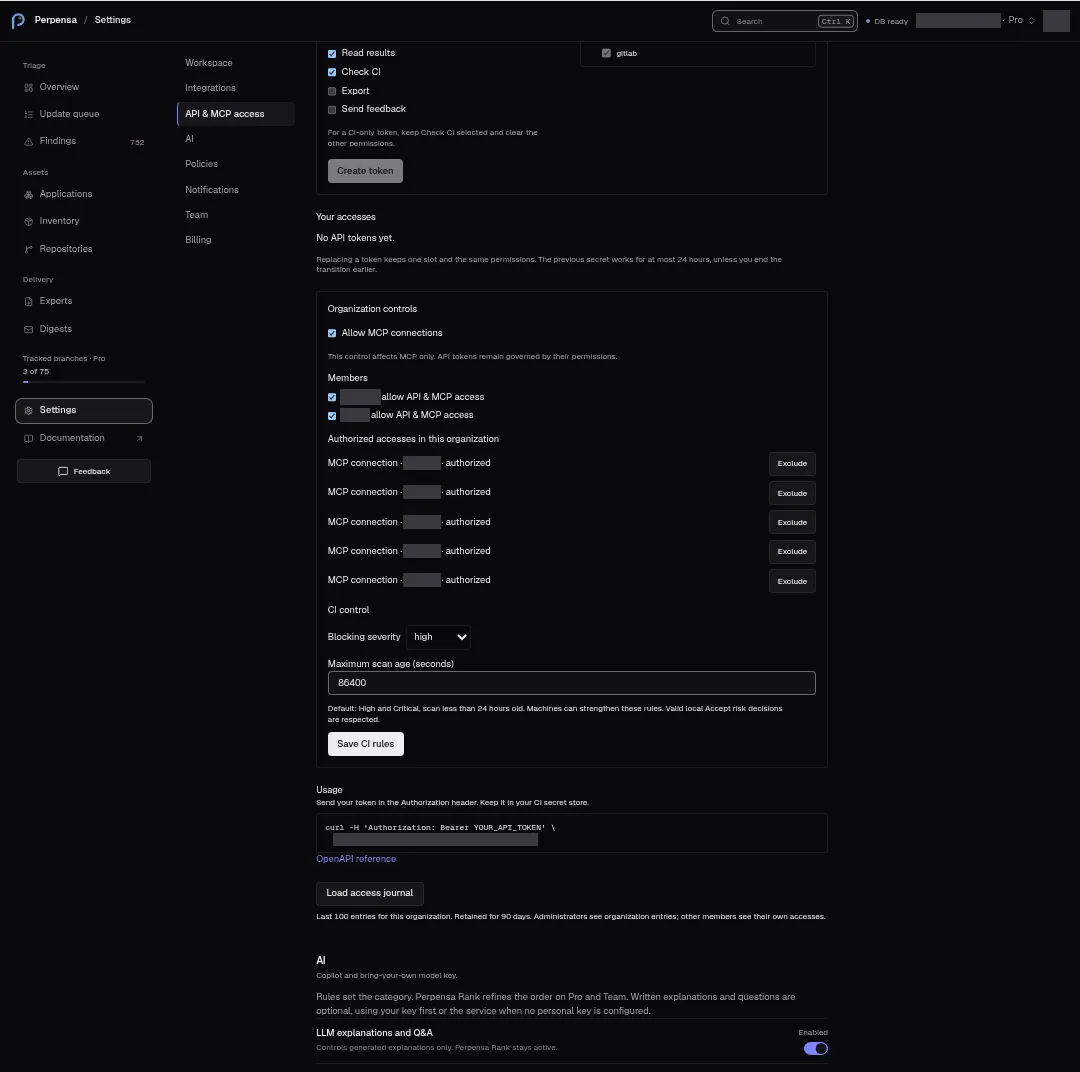
Rules set priority categories. Perpensa Rank refines ordering within them on Pro and Team. LLM explanations and Q&A controls optional generated text; disabling it leaves Perpensa Rank active. Its status is Saving…, Locked, Enabled, or Disabled. Starter locks the switch and personal credential controls.
Data mode displays Minimized facts. Free-text questions go to the selected explanation provider; Perpensa does not keep generated text after the session. A personal key is used first; without one, the service can provide explanations.
| Field or action | Behavior |
|---|---|
| Model | Your provider’s model identifier, required to save; at most 128 characters, beginning with a letter or digit and containing letters, digits, ., _, :, /, or -. |
| Base URL | Your provider’s API address, at most 300 characters. Empty uses the default address. Server address checks apply. |
| Save model | Saves your model and address for the next explanation or question. Success reports Model saved. |
| API key | Password input. Stored status shows configured · … with the last four characters, not configured, or Unavailable. |
| Save key / Rotate key | Saves or replaces your personal key and current model/address; clears the input. Success reports API key saved. |
| Delete key | Removes your personal key. Success reports API key removed. |
These personal settings belong to your account; saving them requires member or administrator access to a paid organization. Changing the address’s scheme, host, or port requires saving the key again. The panel can warn Your provider’s API address has changed. Save your API key again before requesting an explanation.
The organization switch reports LLM explanations enabled or LLM explanations disabled. Failed switch updates show the returned error or Failed to update AI setting. Personal settings failures show the returned error or Failed to load AI settings, Save failed, or Delete failed. An empty key reports Enter an API key first. When saving is unavailable, Perpensa shows Your API key can’t be saved right now. Contact support (code: secrets_key_missing).
Validation can report Invalid model id, LLM base URL is not a valid URL., LLM base URL must use HTTPS., or LLM base URL must not include a username or password. Provider reachability and address restrictions return support codes such as llm_provider_unreachable, llm_provider_unavailable, or llm_address_rejected.
Policies
Section titled “Policies”Only administrators can save shared policies. Switches and selectors save immediately; Critical SLA (days) saves when the field loses focus. Controls pause during a save. Success reports Policy updated; failure shows the returned error or Failed.
| Field | Effect and limits |
|---|---|
| Auto-suppress transitive medium | Enabled by default. After a scan, suppresses open transitive update candidates of medium, low, or info severity without a related known-exploited finding. Pinned candidates are excluded. It changes update-candidate state, not dependency versions. Turning it off does not itself reopen suppressed candidates. |
| Slack and webhook alerts | Pro and Team. Master switch for post-scan Slack/webhook alerts at the realtime floor, scan failures, and SLA breaches, with one-hour deduplication. Saved default is enabled; Starter does not send these alerts. |
| Realtime severity floor | Pro and Team. Critical only (default) or High and critical for alerts on open findings. |
| Outbound alert webhook | Pro and Team. Enables JSON POST delivery to the destination configured in Notifications, with an HMAC header when a secret is set. Saved default is enabled. |
| Critical SLA (days) | 1–90 days, default 7. Open critical findings older than this interval from first observation breach the SLA. The form floors fractional values and caps them at 90. |
| Digest severity floor | Info+, Low+, Medium+ (default), High+, or Critical only. Sets the shared digest policy; personal email preferences are configured separately. |
Policy as code
Section titled “Policy as code”Export YAML fills the textarea with current policies. Import & apply parses and applies the pasted document, then refreshes organization data. Both actions require an administrator. Import accepts at most 20,000 characters.
The export uses version 3 and these keys under policies: auto_suppress_transitive_medium, critical_sla_days, min_digest_severity, realtime_critical_alerts, min_realtime_severity, and alert_webhook_enabled.
Export before editing: omitted import fields use defaults rather than preserving every existing value. The parser supports this simple key/value format, not arbitrary YAML structures. It accepts boolean true/false, yes/no, and 1/0; unrecognized values can produce warnings and defaults. Numeric SLA values are rounded and bounded to 1–90. Starter imports skip the paid alert fields and can display an entitlement warning.
Export reports Exported current policies to YAML. Empty import reports Paste YAML first. Successful import reports Policies imported from YAML, followed by warnings or Applied successfully. Failures show the returned error or Export failed / Import failed.
Notifications
Section titled “Notifications”Personal email subscriptions and organization delivery settings are separate. Viewers and members see shared delivery configuration as read-only and can change their own email preferences.
Your email notifications
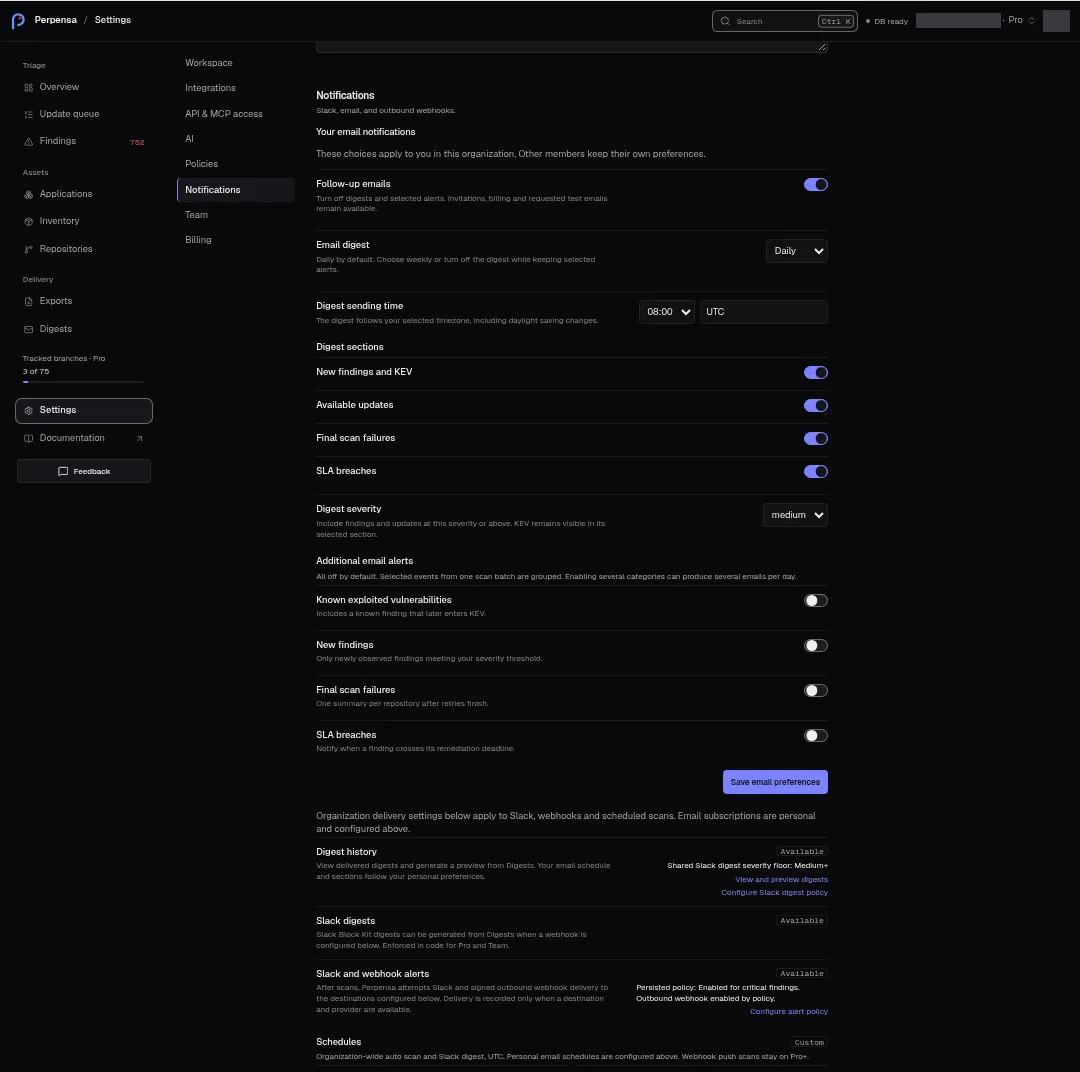
Section titled “Your email notifications”These choices apply only to you in the selected organization. Follow-up emails turns digests and selected alerts on or off; invitations, billing, and requested test emails remain available. Use Save email preferences to persist changes; the button reads Saving… while saving.
Starter provides a weekly digest after the scheduled scan, with known-exploited vulnerabilities first and final scan failures included. Advanced fields below require Pro or Team.
| Field | Choices and behavior |
|---|---|
| Email digest | Daily, Weekly, or Off. Default daily. Turning only the digest off preserves selected alerts. |
| Digest sending time | Digest hour from 00:00 to 23:00; Digest timezone with timezone suggestions; Digest weekday for weekly delivery. Time follows the timezone, including daylight saving changes. Default 08:00 UTC; weekly default Monday. |
| Digest sections | New findings and KEV, Available updates, Final scan failures, and SLA breaches. All selected by default. Hidden when the digest is off. |
| Digest severity | info, low, medium, high, or critical; default medium. Known-exploited findings remain visible in their selected section. |
| Additional email alerts | Known exploited vulnerabilities, New findings, Final scan failures, and SLA breaches. All off by default. Events from one scan batch are grouped; several enabled categories can produce several emails per day. |
| New finding severity | Appears when new-finding alerts are enabled. Same five severity values; default critical. Applies to newly observed findings. |
Known-exploited alerts include an existing finding that later enters KEV. Final-failure alerts summarize a repository after retries finish. SLA alerts occur when a finding crosses its deadline. Saving preferences does not send an alert for an already observed KEV transition.
Loading your email preferences… indicates loading. Could not load your email preferences. offers Retry. Saves report Your email preferences were saved or the returned error, falling back to Could not save your email preferences. Invalid timezone validation reads Choose a valid timezone. Saves are limited to 30 per minute per person and organization. See Email notifications.
Shared delivery and schedules
Section titled “Shared delivery and schedules”Digest history shows the shared Slack severity floor and links to View and preview digests for administrators or View digest history for other roles. Administrators can select Configure Slack digest policy and Configure alert policy to jump to Policies.
Slack digests and Slack and webhook alerts show Available on Pro/Team or Unavailable on Starter. The alert row also shows the persisted master switch, severity floor, and outbound-webhook flag. An available capability or enabled policy does not prove delivery: a usable destination and provider are required.
Schedules is Fixed on Starter and Custom on paid plans. Only administrators on Pro/Team can edit it.
| Schedule | Configuration |
|---|---|
| Auto scan | Starter displays Monday 06:00 UTC. Paid plans default daily at 06:00 UTC and allow off, hourly, daily, or weekly. Daily/weekly schedules select an hour; weekly also selects a weekday. These schedules apply across active repositories. |
| Email digest | Starter: after the weekly auto scan, email only; not independently editable. |
| Slack digest | Paid plans: independent off, daily, or weekly schedule in UTC, default daily 08:00 UTC. Personal email schedules remain separate. |
The displayed 06:00 daily/weekly scan hour is nominal: execution is normally spread between 06:00 and 08:00 UTC. Save schedules reports Schedules saved or a returned error, falling back to Could not save schedules. Disabling scheduled scans does not disable paid webhook-triggered scans.
Shared configuration loading reads Loading notification configuration…. Failure reads Could not load notification configuration and Saved policy values are not shown because their current state could not be verified., followed by an available error.
Delivery destinations
Section titled “Delivery destinations”Only administrators see Delivery destinations. Values are encrypted organization secrets; after saving, only the last four characters are shown.
| Field or action | Purpose |
|---|---|
| Slack webhook URL | Incoming Slack webhook at hooks.slack.com for digests and alerts. Requires Pro or Team. |
| Alert webhook URL | Your JSON receiver, such as a SIEM or automation endpoint. Requires Pro or Team; URL checks apply. |
| Alert webhook HMAC secret | Optional signing secret for the alert receiver. Requires Pro or Team. The receiver must use the same secret; signatures use X-Perpensa-Signature: sha256=…. |
| Save | Saves or replaces that destination value, then clears its input. |
| Remove | Removes the saved organization value. Your organization does not fall back to a shared destination. |
| Test Slack webhook | Sends a real test message to the resolved Slack destination. Requires Pro or Team. |
| Test email delivery | Sends a requested test through the configured email path to the acting administrator’s organization-member email. It does not configure an outbound secret. |
Destination values accept at most 4,000 characters. Slack requires HTTPS and the exact hooks.slack.com host. Alert URLs require HTTPS in production and reject blocked hosts. Invalid destinations report Invalid Slack webhook: or Invalid alert webhook URL: followed by the validation reason.
Destination states read Not set, or Saved · last four followed by the suffix. When saving is unavailable, Perpensa disables it and reports Your delivery destinations can’t be saved right now. Contact support (code: secrets_key_missing). Loading shows Loading…; failure shows the returned error or Failed to load secrets, and Delivery destinations could not be loaded.
Empty saves report Enter a value first. Success reports Secret saved or Org secret removed. Failures show the returned error or Save failed / Delete failed. Slack tests report Slack webhook OK, Webhook not configured, or Webhook test failed. Email tests report Email sent, Email outbox, or Email test failed. An outbox result does not establish delivery. Each test action is limited to five requests per minute per organization.
Team members reports assigned people against the plan allowance, plus pending invitations that reserve seats. Starter allows 1 person, Pro 10, and Team unlimited people. An over-cap message blocks adding people. Distinct pending invitation emails not already seated reserve places; resending an existing pending invite does not reserve another place.
The table has sortable Name, Email, and Role columns. Your row is marked you. Administrators can select viewer, member, or admin through Member role; other roles see a read-only role. Changes report Role updated to followed by the confirmed role. Demoting yourself removes administrator controls after confirmation. Changing a seated member’s role expires their pending invitations.
The last administrator cannot be demoted: Cannot demote the last admin of this organization. A missing target reads Member not found in this organization. Other failures show the returned error or Could not change role. This panel has no member-removal action.
Invitations
Section titled “Invitations”Administrators use Invite a teammate, Invite email, and Invite role, then Send invite. The default role is member; all three roles are available. Email addresses must be valid and no longer than 200 characters. Invitations expire after 72 hours and are single-use. Requests, including resends, are limited to 20 per minute per organization.
The result shows Invite created for the email, role, delivery status, Accept link, and Token, each with Copy. Save the link immediately: refreshing hides it. Email delivery can fail while the invitation itself succeeds. The panel explicitly asks you to copy the one-time link when delivery is unavailable, including support codes invite_link_unavailable and no_email_provider; example addresses are not emailed.
Pending invites lists email, relative expiry, role, and Resend email. The section is absent with no pending invitations. To accept, use the invited account at /invite; a different email produces This invite is for a different email than the signed-in account. Sign out and use the invited address. Expired, used, and invalid links report This invite has expired. Ask an admin to send a new one., This invite was already used., or This invite link is invalid.
Quota locks disable new invitations and show the relevant people-limit message. Team displays an unlimited allowance, but server admission has a safety ceiling of 1,000 assigned and reserved places. Invalid email reads Enter a valid email. Other invitation failures show the returned error or Invite failed. Clipboard failure reads Copy failed. Pending-list failure reports Could not load pending invites.
Loading reads Loading members… and Loading…. No members yet. is the table’s empty state; a failed member reload can also leave an empty table, so this message alone does not verify that the organization has no members.
Billing
Section titled “Billing”Billing shows Starter, Pro, and Team cards with Current on the active plan. The cards show people, tracked branches, scan scheduling, prioritization, email and Slack capabilities, applications, machine allowances, and export formats.
| Plan | Displayed price | People | Tracked branches | API & MCP slots |
|---|---|---|---|---|
| Starter | Free | 1 | 5 | 0 |
| Pro | $49/month; $490/year when available | 10 | 75 | 5 |
| Team | $149/month; $1,490/year when available | Unlimited | 300 | 25 |
Starter includes one organization-wide scan per 24 hours and a weekly auto scan. Paid cards include adjustable schedules, manual and webhook scan jobs, Perpensa Rank, Slack digests, and optional email alerts. All cards include applications and CycloneDX, SPDX, and CSV exports. Check the displayed checkout confirmation: subscription-change confirmation amounts come from configured billing prices and can be omitted if unavailable.
Subscription actions
Section titled “Subscription actions”Checkout and portal actions require an organization administrator and configured self-service billing. Other roles see Only an organization admin can start checkout or open the customer portal. View organization admins jumps to Team when that section is available.
| Action | Availability and consequence |
|---|---|
| Start Pro / Start Team | Offered from Starter when checkout is enabled. Opens checkout for the chosen plan and available billing interval. |
| Upgrade to Team | Offered from Pro for an active or trialing subscription not scheduled to cancel. Period changes can require a confirmation. A move from yearly to monthly waits until the annual period ends; a move from monthly to yearly credits unused time and restarts billing now. |
| Manage billing | Opens the customer portal when a billing customer exists. Downgrade and cancellation requests are directed to the portal. |
| Switch to yearly | Offered on an eligible current paid plan when yearly billing is configured. Confirmation explains that unused monthly time is credited and the billing cycle restarts now. |
| Switch to monthly | Schedules monthly billing after the current annual period; nothing is charged now and there is no credit. |
| Keep yearly | Cancels a scheduled change to monthly, after confirmation; nothing is charged now. |
The Monthly and Yearly choices appear only for plans with yearly billing configured. Interval switches require a recognized current interval and active/trialing subscription; controls pause during a request. A pending change displays Changes to with the plan, interval, and effective date.
Returning from successful checkout displays Checkout finished. The plan updates after Stripe confirms the payment — this page does not change it by itself. Cancellation displays Checkout canceled. No plan change was applied. Verify the resulting current plan rather than treating the return page as payment confirmation.
Subscription notices include Payment past due. Update the card in the billing portal., Checkout is incomplete. Finish payment to activate the plan., and Subscription canceled. Access follows the current plan until it lapses. Scheduled cancellation shows Cancels at period end with its date and Access stays until then. An unrecognized live interval can display The current Stripe subscription keeps this period.
If checkout is not configured, the section reads Self-service billing is not available. and Contact an organization administrator to discuss billing or plan changes.
Billing errors
Section titled “Billing errors”Requests display their returned error; the fallback is Billing request failed. Errors identify the next available step rather than confirming a plan change.
| Situation | Messages that can appear |
|---|---|
| Access or configuration | Sign in to start checkout., Sign in to manage billing., Ask an organization admin to start checkout., Ask an organization admin to manage billing., Choose the organization in Settings billing before starting checkout., Organization not found. |
| Plan or interval selection | Choose Pro or Team., Choose monthly or yearly before changing the billing period., Annual billing is not configured for this plan., Checkout price is not configured for this plan., Change an existing subscription from Settings billing., Cancel a scheduled change from the current plan in Settings., Downgrade or cancel from the billing portal at the end of the period. |
| Existing subscription or payment state | A billing change is already in progress. Retry that change before starting another., A checkout is already in progress., Checkout already completed. Refresh billing or wait for Stripe to settle it., A Stripe subscription already exists for this organization. Refresh billing or open the portal., This subscription is not active. Open the billing portal to update payment or wait for Stripe to settle it. |
| Subscription cannot be changed | No active Stripe subscription to change., No active Stripe subscription to upgrade., This subscription is scheduled to cancel. Resume it in the billing portal before changing the billing period., The live billing period is not recognized. Open the billing portal., The live subscription price does not match this plan. Refresh billing or open the portal. |
| Billing service failure | Could not read the Stripe subscription., Could not change the Stripe subscription., Could not create a Stripe customer., Could not inspect Stripe checkout state., Could not create a Stripe checkout session., Stripe did not return a checkout URL., Your previous subscription could not be cancelled. Try again later or contact support (code: stripe_request_failed). |
| Portal unavailable | No Stripe customer for this organization yet., Stripe did not return a portal URL. |
Security, sign-in, and access recovery
Section titled “Security, sign-in, and access recovery”Saving or removing organization delivery secrets and personal explanation keys can open a fresh identity-confirmation popup. Complete it before the save can proceed. Blocking it can produce Pop-up blocked — allow pop-ups to confirm with GitHub; closing or leaving it unfinished can produce GitHub confirmation was cancelled or GitHub confirmation timed out. Policy imports, invitations, and role changes also obtain action confirmation, but do not use that popup flow.
The sign-in screen at /login offers Continue with GitHub when available. It contains no password-reset form. Unavailable sign-in displays Sign-in is unavailable right now. Contact support (code: AUTH_DISABLED). or GitHub sign-in is unavailable right now. Contact support (code: GITHUB_SOCIAL_NOT_CONFIGURED). Loading sign-in options can fail with Could not load sign-in options. Try again. A sign-in attempt shows its returned error or Sign-in failed.
For organization invitations, use the invited account or ask an administrator to invite you again if the invitation expired. For repository access, use the Integrations repair actions. Neither flow is a password reset.